Posts and Pages
Let's look at adding, editing and viewing posts and pages.
For conciseness, we'll use the term page to refer to pages as well as posts.
Adding and editing pages
On the Content Manager screen, select either Posts or Pages.
You'll see a list of existing pages; or nothing if none have been added yet.
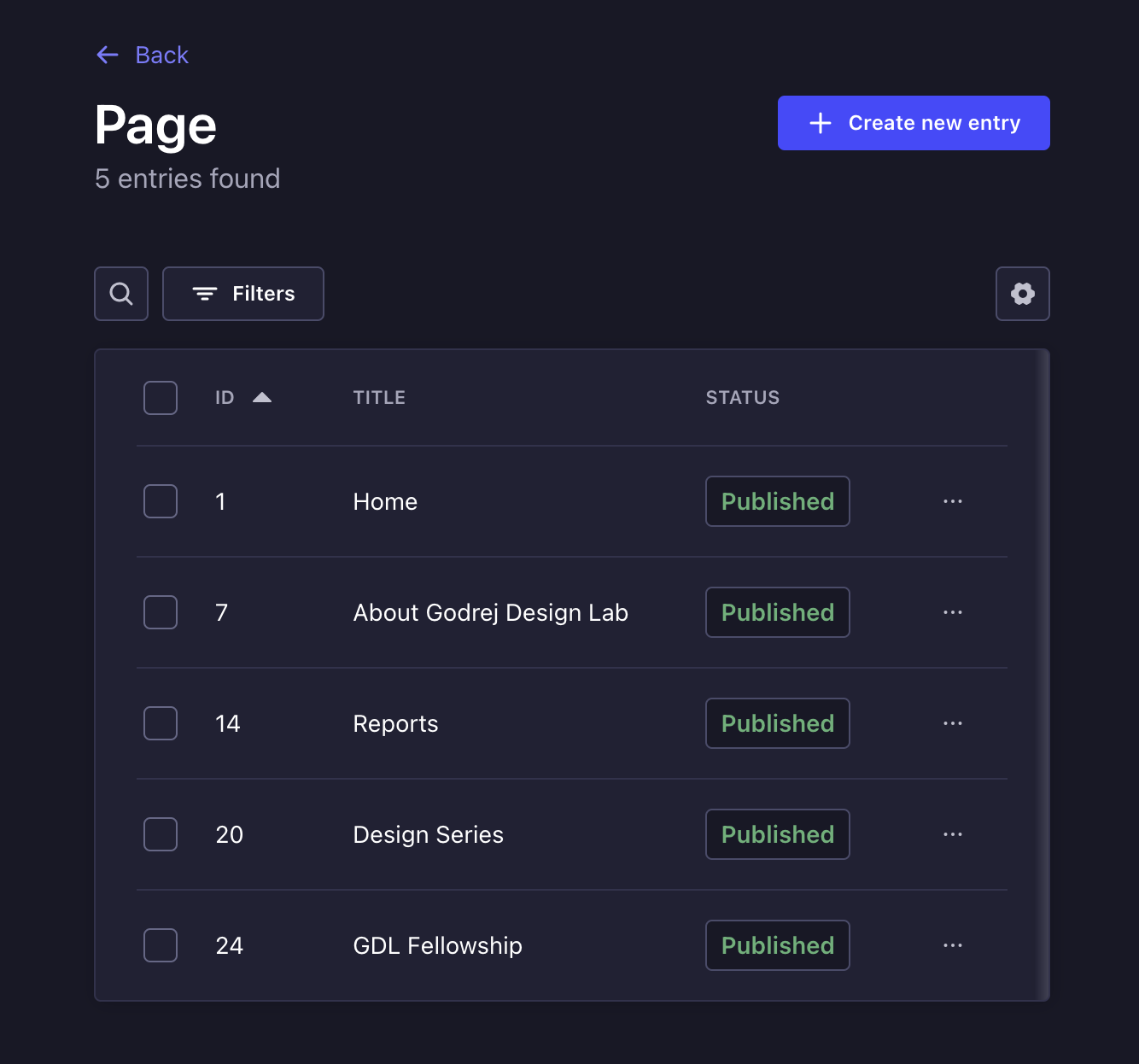
To add a new page, click on "Create new entry".
To edit an existing page, click on the row that corresponds to the page.
You'll be taken to a screen where you can add or edit the content for a page.
The screen is essentially a long, extensive form. Not unlike the one you sort through when filing your taxes, but this one is far simpler to navigate and easier to follow.
Here's a rundown of the various fields:
| Field | Notes |
|---|---|
| Title | This is used to the refer to the page within Strapi. (It does not insert a heading on the UI) |
| Table of Contents | This introduces a table of contents pane on the rendered page. |
| Page Context | Determines the following:
|
| Color Scheme | The text and background colors used throughout the page can be customized |
| Cover | The image that'll show when sharing this page on social media |
| Category | (for posts only) The category that the post belongs to |
| Header region | This is for the introductory content of the page. Do not place the entirety of the page's content here. |
| Main region | This region represents the dominant content of the page. It consists of content that is directly related to or expands upon the subject or central topic of the page. |
| Side region | This is for content that is only indirectly related to the page's main content. Content is this region is tucked away to the left of the page. However, on mobile, they slide in between the header and main regions. |
We will dive deeper into the actual populating of page content later on.
Previewing a page
What does the page look like from a user's perspective? To preview the page, click on the "Open preview" button. This can be found on the column to the right.
By default, you'll be shown a preview of the draft version of the page. If you want to see what the published version looks like, simply click on the "Published" tab (at the top).
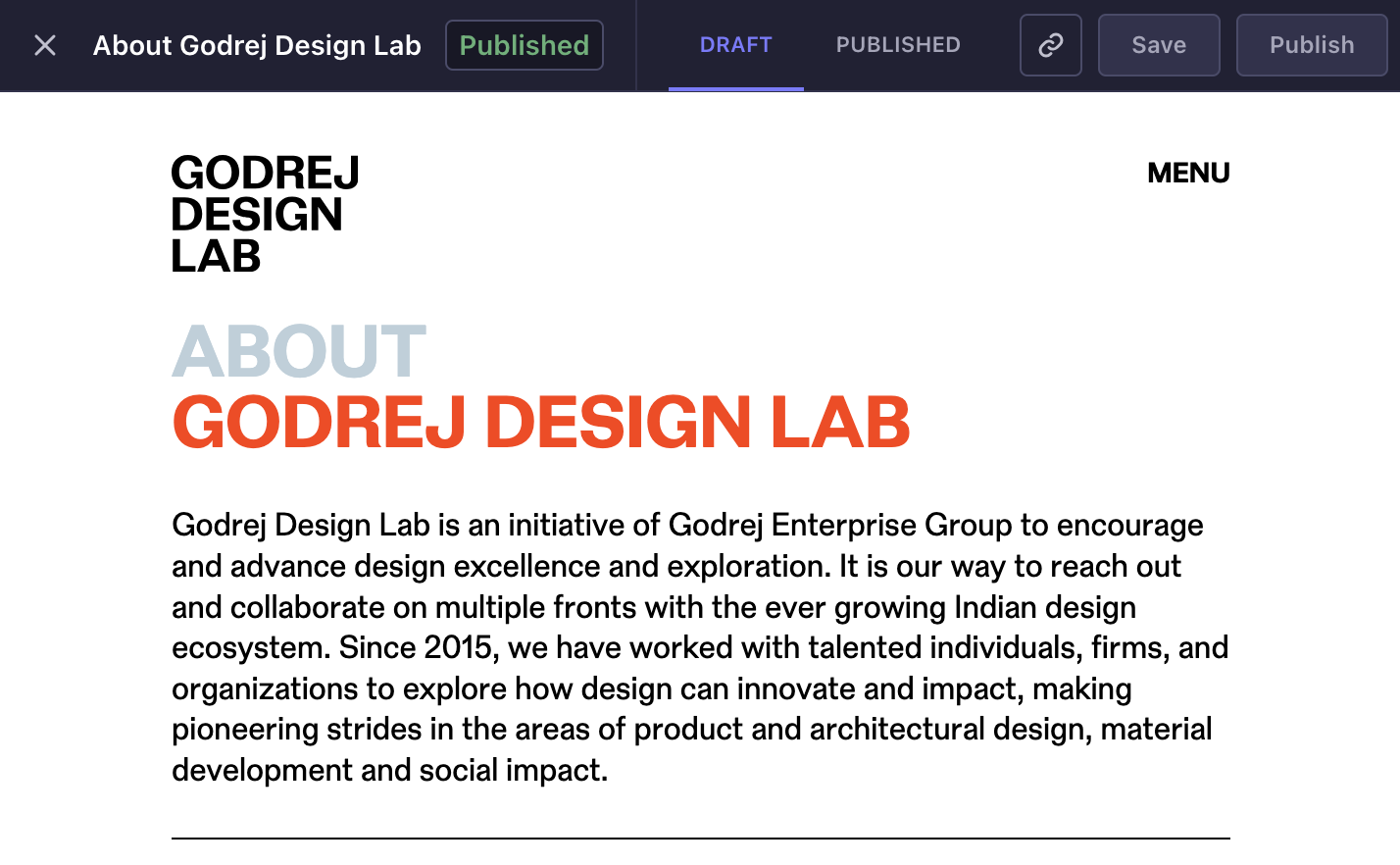
The preview will not reflect unsaved changes
You'll only be able to see the updates made if they have been saved or published. Hence, make sure to save/publish the page before previewing.
Publishing a page
For the public to see the page, it first has to be published.
To publish, simply click on the Publish button.
A URL is generated and is assigned to the page. To view this URL, click on the "Edit URL alias" button.
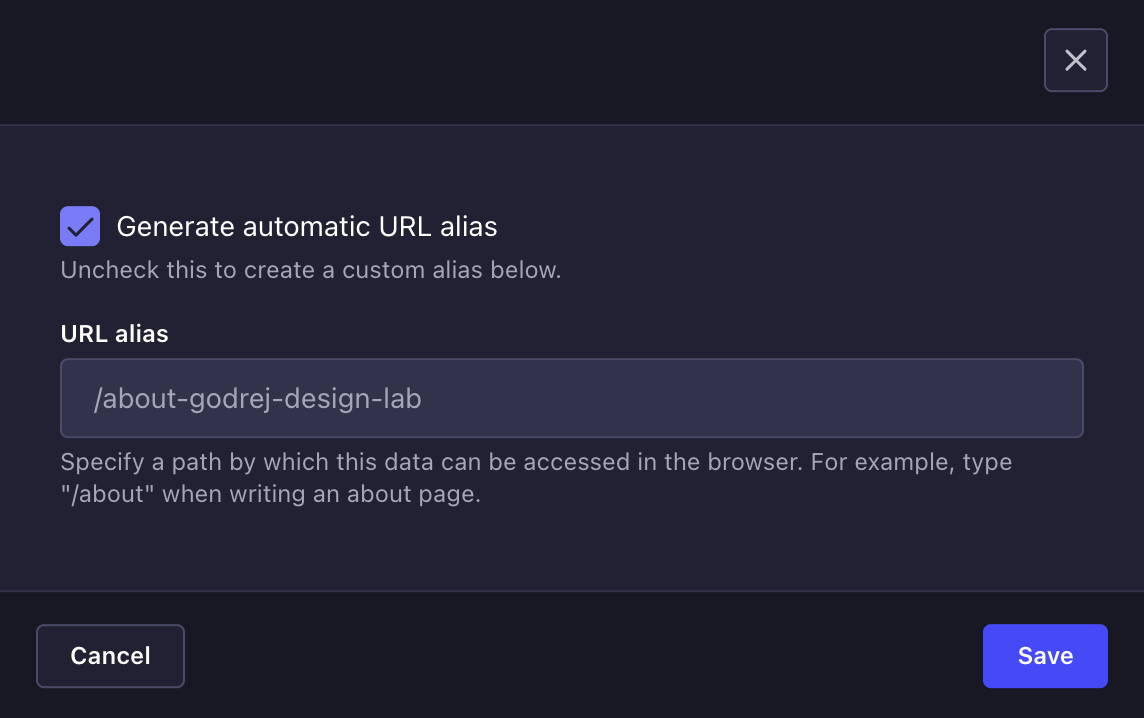
If you wish to customize the URL, simply un-check the "Generate automatic URL alias" box, type in your preferred URL and hit Save.
Alright, the page is now published.
However, no user will be able to see this page. This is because the page is not discoverable, yet. It is technically "unlisted". There is no link on the website that points to this page.
Links to posts and pages won't automatically show up on the UI unless they have been explicitly placed there.
Linking to a page
Consider two pages — Reports and Understanding Conscious Living in India
You want to include a link to the latter within the former.
First, we'll need to procure the link:
- Open the Understanding Conscious Living in India page for editing
- Click on "Edit URL Alias"
- Select the URL and copy it
Next:
- Open the Reports page for editing
- Add a content block that can hold links (such as the WYSIWYG or Post Listing blocks)
- Paste the link into the provided link field
Now the page has become discoverable.
Deleting a page
Here's how you remove a page:
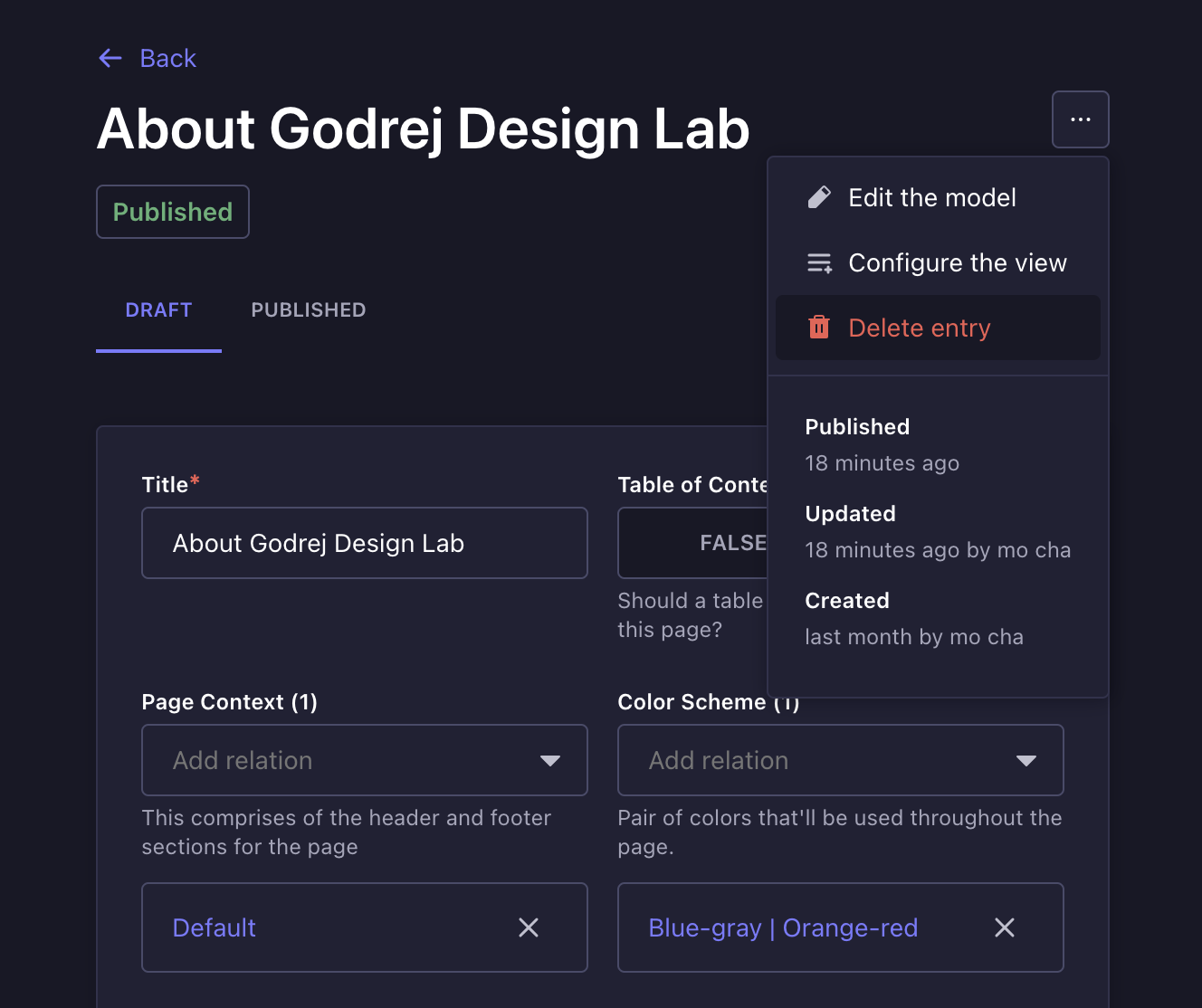
- Click on the 3 dots (
...) at the top-right corner. A small context menu should pop open. - Click on "Delete entry".
Make sure to find the other parts of the website where this page is linked to and remove those references as well.